
If you want to build a video editing PC for any budget, this guide will provide useful information and insight on which component to purchase, all the way to other equipment necessary to set up a standard video editing studio. Video Editing places a heavy demand on PC hardware. Some major video editing apps such as Adobe Premiere Pro, Avid Media Composer, Da-Vince Resolve Studio, and Sony Vegas always provide updated versions of their editing suites. These latest versions are always tuned to take advantage of the latest advances in hardware.
For instance, Premiere Pro CC 2018 and subsequent versions of the app are designed to take advantage of multi-threaded CPUs, as such if you are serious about your video editing work, you should get a powerful processor that can handle your video processing workflow with ease.
Please follow along as we dissect all the information you need to build a video editing PC, set up your studio, and remain profitable. See reasons why you should build a custom PC instead of buying a pre-built PC.
Related Article
Best 3D Animation and Render Desktop PC Build – Full Guide
This guide features the indomitable AMD Threadripper CPU. Build a kick-ass render PC
Recommended Video Editing Builds – AMD & Intel
The following section holds recommendations for different budgets, both for AMD and Intel platforms. All components have been selected to work together without compatibility issues.
AMD VIDEO EDITING PC BUILDS
AMD Budget Video Editing PC Build
Choose this build if you want a budget video editing PC based on the AMD platform. All parts are vetted for compatibility. If you don’t like some recommendations, you can easily edit the build by clicking on the BUILD/CUSTOMIZE THIS button to take you to the AI PC Builder tool where you can swap out unwanted components and add new ones.
BUDGET: $600 – $700
- CPU: Ryzen 5 5600G$184.99
Price on Newegg
Amazon Price
- Motherboard: ASRock B550M-HDV$69.99
- RAM: Corsair Vengeance LPX 16GB DDR4$139.95
- Storage 1: Crucial P310 1TB NVMe M.2$162.21
- PSU: Thermaltake Smart 500W 80+ White Certified PSU$39.99
- Case: NZXT H5 Flow$74.99
TOTAL COST: $672.12
📊 Price History
[Prices updated: 5:11am, 07/29/2026]
Note: No dedicated GPU to stay within budget, suitable for 1080p editing in DaVinci Resolve or Premiere Pro using proxies.
AMD Mid-Range Video Editing PC Build
Choose this build if you want a mid-range Video Editing PC based on the AMD platform. All parts are vetted for compatibility. If you don’t like some recommendations, you can easily edit the build by clicking on the BUILD/CUSTOMIZE THIS button to take you to the AI PC Builder tool where you can swap out unwanted components and add new ones.
BUDGET: $1500 – $2300
- CPU: Ryzen 7 7700X$230.00
- Motherboard: MSI B650-P Pro WiFi (Used – Like New)$99.99
- PSU: Corsair RM750e 80+ Gold Fully Modular$89.99
- CPU Cooler: Cooler Master Hyper 212$25.99
- GPU: MSI Gaming GeForce RTX 3060 12GB$379.22
- RAM: Crucial Pro DDR5 RAM 32GB Kit (Unavailable)$459.99
- Storage 1: WD_BLACK 4TB SN850P NVMe $789.99
- Case: Fractal Design Meshify C (Unavailable)$128.75
TOTAL COST: $2,203.92
📊 Price History
[Prices updated: 5:11am, 07/29/2026]
Strong multicore performance and a dedicated GPU make this build great for 4K timelines and faster exports.
AMD High-End Video Editing PC Build
Choose this build if you want a high-end Video Editing PC based on the AMD platform. All parts are vetted for compatibility. If you don’t like some recommendations, you can easily edit the build by clicking on the BUILD/CUSTOMIZE THIS button to take you to the AI PC Builder tool where you can swap out unwanted components and add new ones.
BUDGET: $4500 and above
- CPU: Ryzen 7 9800X3D$424.99
- Motherboard: ASUS ROG Crosshair X870E Hero$549.00
- RAM: Corsair Vengeance DDR5 RAM 96GB$1,699.99
- GPU: AMD Radeon Pro W7900 48GB$3,899.00
- Storage 1: Sabrent 8TB Rocket 4 Plus NVMe$3,199.99
- PSU: Corsair HX1500i Fully Modular ATX Power Supply$349.99
- Case: Fractal Design Define 7 XL$239.99
- CPU Cooler: Arctic Liquid Freezer III Pro 360$69.89
TOTAL COST: $10,432.84
📊 Price History
[Prices updated: 5:11am, 07/29/2026]
Built for uncompromised high-resolution video editing, color grading, and rendering heavy media projects in After Effects, Resolve, or Premiere.
INTEL VIDEO EDITING PC BUILDS
Intel Budget Video Editing PC Build
Choose this build if you want a budget Video Editing PC based on the Intel platform. All parts are vetted for compatibility. If you don’t like some recommendations, you can easily edit the build by clicking on the BUILD/CUSTOMIZE THIS button to take you to the AI PC Builder tool where you can swap out unwanted components and add new ones.
BUDGET: $600 – $800
- RAM: Corsair Vengeance LPX 16GB DDR4$139.95
- Storage 1: Crucial P310 1TB NVMe M.2$162.21
- PSU: Thermaltake Smart 500W 80+ White Certified PSU$39.99
- Case: TGDGamer High Airflow Micro ATX PC Case$29.99
- CPU: Core i5-12400$359.00
- Motherboard: ASUS PRIME H610M-E$99.90
TOTAL COST: $831.04
📊 Price History
[Prices updated: 5:11am, 07/29/2026]
Great for basic 1080p video editing using proxies and light effects. No GPU to stay within budget.
Intel Mid-Range Video Editing PC Build
Choose this build if you want a mid-range Video Editing PC based on the Intel platform. All parts are vetted for compatibility. If you don’t like some recommendations, you can easily edit the build by clicking on the BUILD/CUSTOMIZE THIS button to take you to the AI PC Builder tool where you can swap out unwanted components and add new ones.
BUDGET: $2000 – $3500
- PSU: Corsair RM750e 80+ Gold Fully Modular$89.99
- CPU Cooler: Cooler Master Hyper 212$25.99
- GPU: MSI Gaming GeForce RTX 3060 12GB$379.22
- RAM: Crucial Pro DDR5 RAM 32GB Kit (Unavailable)$459.99
- Storage 1: WD_BLACK 4TB SN850P NVMe $789.99
- Case: Fractal Design Meshify C (Unavailable)$128.75
- CPU: Core i7-13700K$449.99
- Motherboard: ASUS TUF Gaming Z690-Plus WiFi (Unavailable)$149.00
TOTAL COST: $2,472.92
📊 Price History
[Prices updated: 5:11am, 07/29/2026]
Ideal for 4K editing, smooth timelines, and accelerated rendering with CUDA-optimized Adobe apps.
Intel High-End Video Editing PC Build
Choose this build if you want a high-end Video Editing PC based on the Intel platform. All parts are vetted for compatibility. If you don’t like some recommendations, you can easily edit the build by clicking on the BUILD/CUSTOMIZE THIS button to take you to the AI PC Builder tool where you can swap out unwanted components and add new ones.
BUDGET: $4500 and above
- RAM: Corsair Vengeance DDR5 RAM 96GB$1,699.99
- Storage 1: Sabrent 8TB Rocket 4 Plus NVMe$3,199.99
- PSU: Corsair HX1500i Fully Modular ATX Power Supply$349.99
- Case: Fractal Design Define 7 XL$239.99
- CPU Cooler: Arctic Liquid Freezer III Pro 420$81.89
- CPU: Core Ultra 9 285K$496.00
- Motherboard: msi MEG Z890 ACE Gaming$646.20
- GPU: Asus TUF Gaming NVIDIA GeForce RTX 4090 OC Edition$3,399.95
TOTAL COST: $10,114.00
📊 Price History
[Prices updated: 5:11am, 07/29/2026]
Ultimate performance for professional editors working with 8K RAW, VFX, and heavy compositing workloads.
Related Article
The Best PC Build for Photo Editing & Photography
Check out our comprehensive build guide for Photo Editing and Photography. Equipment recommendations and buying guide included.
Hardware Priority Chart for Video Editing PC Build

The hardware priority chart is a visual presentation of the most crucial components that you should devote a major chunk of your budget if you intend to build a video editing PC. The components are rated on a scale of 1-10. If the components score a 10, then it means you should devote the highest budget priority to that component. If possible, get a high-end component instead of a low-end or mid-range version.
For instance, if the graphics card scores 10 on the chart, then you should devote between 20-30% of your budget to getting the graphics card. This means that if your budget is $1500, then your graphics card should take at least 400-$500. For this guide on building a Video Editing PC, the processor and graphics card have the same level of budget priority. This means that if your budget is 1500, then your processor and graphics card should take between 800 – $1000.
Now, these are the reasons for this: you need the best processor your money can buy because the processor plays a vital role in video rendering. The CPU is almost always responsible for rendering your edited video. The rendering speed is a function of how many cores and threads the processor has, and the clock speed.
Likewise, the graphics card also plays a vital role. Most editors today support GPU-accelerated effects and even GPU rendering. This is most important if you want to maintain the smoothest workflow, as the CPU is freed to do normal computations in the video editing workflow.
Next in order of importance are the RAM and SSD. They both rank 9 on the scale. These two are the next most important components, though with lesser budget priority. You can scale down on the RAM quantity, instead of buying 32GB, you can still function with 16GB. Same with the SSD. The storage hard drive has a still lesser budget priority. This means you can just make do with 1TB, instead of getting an 8TB or 12TB drive. You can use an external HDD to back up your video clips and assets.
Most important components for Video Editing PC
- PROCESSOR
For the best performance in video editing, your processor must be a multi-core processor, preferably from 4 or 6 cores to as many cores as you can afford. This is because of the nature of video editing, which places a huge demand on raw processing power.
At the budget level, you should get at least a six-core processor. You should also go for a processor with multi-threading, which effectively multiplies the number of cores you have on the processor. This way, you cut down the time it would take to process jobs, such as rendering your edited videos or transcoding.
With a six-core processor, you can comfortably edit 4K videos with effects and transitions thrown in. If you are going to be editing 8K videos, you should go for probably a ten-core processor or something higher.
Right now, the AMD Ryzen 9 5950X is the best-rated processor for video editing, with its 16-core/32 threads and higher frequency offering, and lower pricing. Another great option is the Intel Core i9 12900K, for those who prefer the Intel platform.
- BOOT DRIVE
You should go for a speedy SSD, or better still go for an M.2 SSD. M.2s are much faster than traditional SSDs. A budget video editing build should go for an SSD, while a high-end build should go for M.2 storage.
Additionally, it is advisable to use a separate SSD for caching file data, apart from the boot SSD or M.2 drive. For example, Premiere Pro creates a cache anytime you add media files to the project. For the best performance, get two SSDs or M.2 drives – one for the boot drive, the other for file caching. - STORAGE DRIVE
Video editing involves large amounts of files, especially if you are editing ultra-high-definition footage, such as 4K or even 8K. You need as much storage as you can afford to get. - RAM
You need lots of RAM. Video editing apps are RAM-hungry, due to the fact that you will be handling large video files, working with effects-heavy compositions, rendering, and transcoding.
Well, you need as much RAM as your motherboard can take. For budget builds, at least 16GB of DDR4 RAM is adequate. High-end builds should take up to 64 or 128GB of RAM. - GRAPHICS CARD
For the best performance, you need a high-end graphics card on your video editing PC. Graphics cards are playing an increasingly prominent role in video editing. For instance, Premiere Pro supports GPU acceleration for rendering some effects.
Graphics cards also come in useful in video rendering/transcoding. Most of the applications support GPU rendering, which speeds up your workflow considerably. - MONITOR
As a video editor, you need a monitor that is capable of reproducing colors accurately. You shouldn’t just go for that fancy 4K 32-inch monitor. Not all monitors deliver the best in color accuracy.
For budget builds, we recommend the BenQ 24 Inch IPS Monitor for media professionals. If you are going to build a high-end video editing PC, then the BenQ 32-Inch 32″ IPS, Post-Production Monitor is for you.
We have an article for the best 4K Video Editing PC build, featuring a Threadripper, with our choice of components carefully selected by our technical department. Click here to move to the step-by-step guide on how to build your own PC.
Do I need a high-end GPU to build a Video Editing PC?
Short answer. Yes, and No.
The major reason is that when you are editing video, your graphics card is responsible for rendering some effects, called GPU-accelerated effects. The thing is, if your card is incapable of performing this function, your system simply shifts the work to the CPU.
This can tell on the CPU if it’s a low-budget chip, leading to hang-ups and seriously degraded performance. Also, transcoding utilizes the GPU to a large extent. This is based on the rendering engine utilizing the inbuilt proprietary computation libraries, such as the NVidia CUDA and the AMD Open CL. There’s also Intel Quick Sync for Intel processors. These libraries help to accelerate GPU transcoding substantially in video editing and transcoding apps. To cut a long story short, your budget determines whether you should get a high-end GPU. However, if you can, then get a high-end GPU by all means.
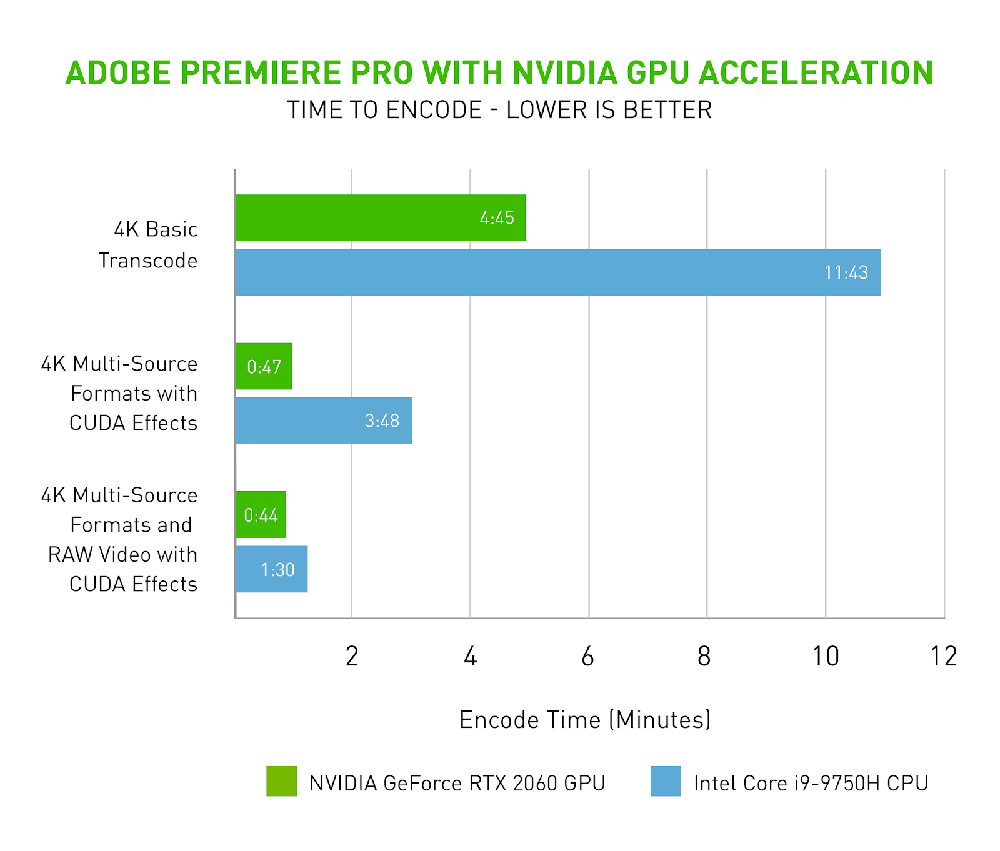
Now if your budget is between $600-800, you may not be able to get a high-end card. You are limited to a low-budget card of between $200-300. If your budget is up to 2K to $3K, then you can be able to afford high-end cards that your editing software will love. At the end of the day, this decision saves you money and also makes you money. This is due to the fact that time is money in this industry.
If you can be able to render your videos in seconds, you’ll get more done in less time, saving you money. This also translates to more jobs getting done in less time, making you money in the long run.
Related Article
Best Configuration for Graphic Design [Updated]
This guide is all you need to build a PC for Graphic Design. Recommended configuration plus guide.
What about the Monitor?
If you are building a video editing PC, the monitor is equally important in the equation. Why is this so? The monitor shows you what the finished job will look like on a regular TV. Now, this is super important. If you are doing lots of color grading and look development, then your monitor must be super-accurate in its representation of the color. You want to accurately match colors, and ensure that the output is consistent with your vision, or your customer’s specifications.
There are professional monitors designed for this purpose and more. These monitors are designed to accurately reproduce consistent color in production scenarios. They are able to achieve this by special LUTs hardwired into the monitor electronics. Also, most consumer monitors are rated at 8-bit depth. This bit depth may not be able to accurately match the whole RGB gamut.
Professional monitors are able to output 10-bit images for deeper and more balanced output. When getting a monitor, ensure it is a 10-bit monitor. The only downside is that 10-bit monitors are pricier, compared to their 8-bit counterparts.
Just how much storage should I get?
This is simply a function of the size of videos you shoot and work with. If you are shooting with your smartphone, chances are your footage will probably be 1080p, and you might need like 2-3TB hard drive.
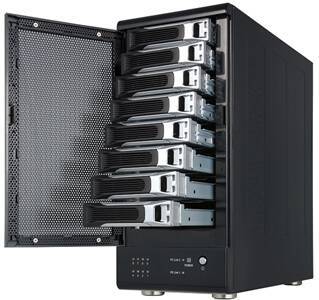
storage for footage
On the other hand, if you are shooting with professional 4K or 8K capable cameras, and are going to be editing those videos, then you need terabytes of storage for your footage. Video consumes lots of storage space. Therefore, there’s no amount of storage that is too big, because eventually it will get filled up. Of course, one of the ways to keep your storage freed up is by deleting old jobs lying around on the drive.
If you want to take it further, you can invest in a simple raid array for storing your footage. This ensures your data is safe and secure, mitigating any eventual crashes or data corruption. You are far better off investing in enterprise-class RAID storage, utilizing NAS hard drives than just using single or double regular hard drives. NAS drives have better reliability and performance quotient than regular hard drives.
The need to invest in the best available hardware, then upgrade
One of the challenges that video editors and content creators face is the fact that hardware that is considered the latest today will eventually become obsolete in a few years’ time. Also, software developers are constantly coding much more powerful applications which in most cases, the previous generation hardware does not have the capability to handle.
What usually happens is in 10–15 years’ time, technologies have advanced so much that computers made now will be too slow to handle them. It’s always wise to build a brand new PC with the latest components and make sure they are high-end. This is because video editing apps are always evolving, and getting more powerful. So if your PC parts are brand new today and high-end, then it will probably take up to 10 years before they become totally obsolete.
This is called future-proofing. However, there are arguments for and against future-proofing your video editing PC build. Some of the arguments include the following:
- Future-proofing isn’t for everyone – the only segment that would really benefit from future-proofing are those that use their PCs for light work including typing, movie watching, and browsing. That way, the PC can remain relevant and useful for a very long time, all things being equal.
- Warranties don’t last that long – warranties for major PC components are quite shorter than 5 years in most cases. This kind of defeats the purpose of future-proofing. If the parts start failing after the warranty period, then you may be forced to upgrade.
- PC technology isn’t improving by leaps and bounds – technology has kind of peaked in recent years, and users don’t see a huge amount of improvement in performance, compared to previous years. In addition, manufacturers are making parts more energy efficient, which improves their longevity. What this means is that even if you get the best hardware now, you are not going to see vast performance improvements when compared to the previous generation. This has been largely true with processors.
- Future-proofing is only viable if you overclock – if you are not going to overclock your processor, then future-proofing is not viable. This is because, in a few years, your processor power is going to struggle with new rendering technologies yet to be released. A good point is the ray-tracing feature of Adobe After Effects which previous generation hardware wasn’t designed to handle, but overclocked processors still performed better than non-overclocked ones.
- Future-proofing isn’t cost-efficient, compared to rolling upgrades – there is always the tendency of your spanking new hardware failing in the next couple of years. When that happens, you have no choice but to upgrade. In terms of cost, it’s better to save some of that money, instead of buying top-of-the-line hardware. In a few years, you can fall back on your savings for upgrades.
However, despite all these reasons, it is better, in our opinion, to get the best hardware you can get for your money, and still prepare for upgrades in the future. This is because video editing needs the best hardware for the best results. It is simply a matter of time you spend rendering and transcoding video. The less time you spend, the more money you are making, and the more money you get to save on energy bills. So what’s our verdict? Buy the best now, and prepare for upgrades.
Video Production & Editing Equipment

If you are going to create videos for YouTube or for customers, you are going to need some basic equipment to get started. Video content matters, as well as quality. YouTube accommodates up to 2K video resolution, while a normal broadcast video can range from 1080p to 4K.
Even though broadcast TV hasn’t gone up to 4K, right now you can find 4K content in many places. Most of the major streaming services, like Netflix, Amazon, iTunes, and Vudu all have 4K available. So, it would be wise to be able to produce 4K content because most TVs right now are 4K resolution capable.
Video Production Hardware – Cameras
DSLR Cameras
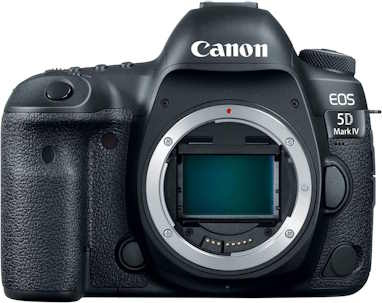
Canon EOS 5D Mark IV Digital SLR Camera
Price: $1,799.00
868 Reviews
See on AmazonPrice incl. tax, excl. shipping
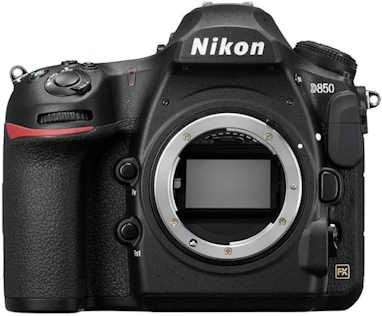
Nikon D850 FX-Format Digital SLR
Price: $2,396.95
797 Reviews
See on AmazonPrice incl. tax, excl. shipping
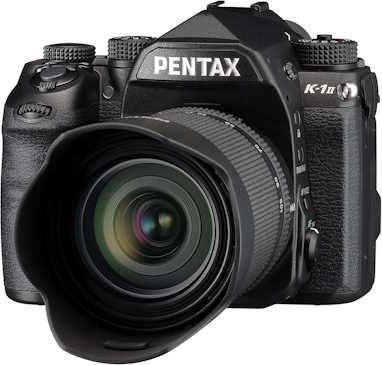
Pentax K-1 Mark II
Was: $2,399.95
Currently Unavailable
38 Reviews
See on AmazonPrice incl. tax, excl. shipping
Related Article
Best Budget Gaming PC Build- Full Guide
Thinking of building a gaming PC on a budget, follow this guide as we show you how
Mirrorless DSLR Cameras
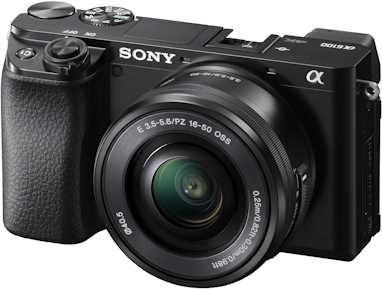
Sony Alpha A6100 Mirrorless Camera
Price: $863.91
423 Reviews
See on AmazonPrice incl. tax, excl. shipping
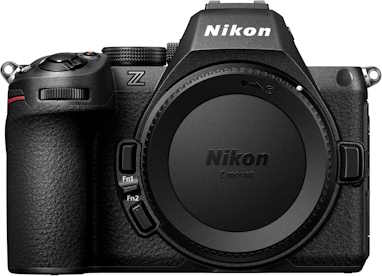
Nikon Z5 II
Price: $1,696.95
89 Reviews
See on AmazonPrice incl. tax, excl. shipping
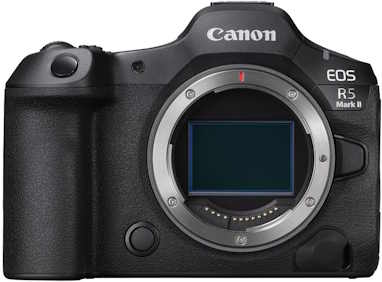
Canon EOS R5 Mark II
Price: $3,999.00
128 Reviews
See on AmazonPrice incl. tax, excl. shipping
Action Cameras
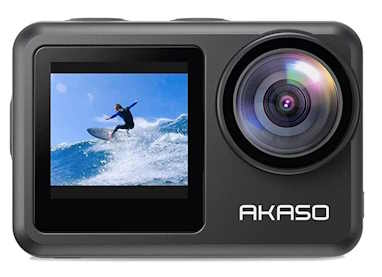
AKASO Brave 7 LE
Price: $139.99
6564 Reviews
See on AmazonPrice incl. tax, excl. shipping
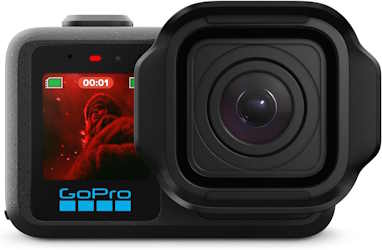
GoPro Mission 1 PRO
Price: $699.00
38 Reviews
See on AmazonPrice incl. tax, excl. shipping
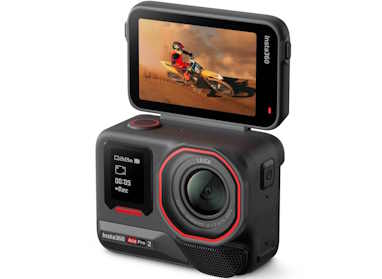
Insta360 Ace Pro 2
Price: $389.99
120 Reviews
See on AmazonPrice incl. tax, excl. shipping
Digital Camcorders
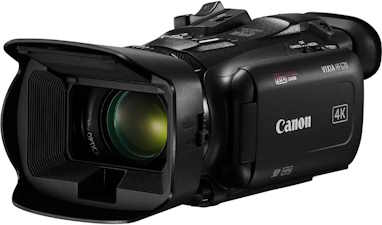
Canon VIXIA HF G70 Camcorder
Price: $1,349.00
159 Reviews
See on AmazonPrice incl. tax, excl. shipping
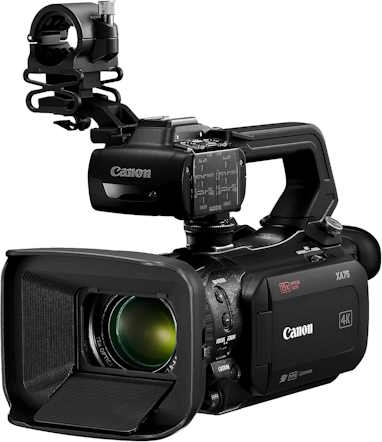
Canon XA75 Professional Camcorder
Price: $3,199.00
9 Reviews
See on AmazonPrice incl. tax, excl. shipping
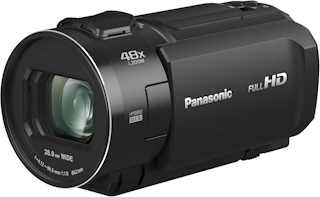
Panasonic HC-V900
Price: $847.99
12 Reviews
See on AmazonPrice incl. tax, excl. shipping
Lighting Kits
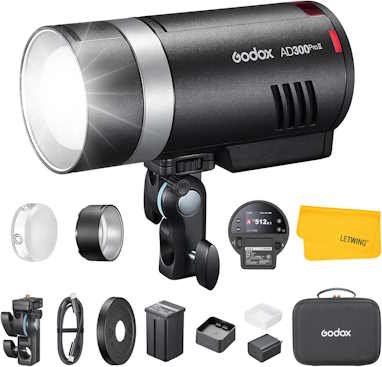
GODOX AD300Pro II AD300 Pro II
Price: $499.00
15 Reviews
See on AmazonPrice incl. tax, excl. shipping
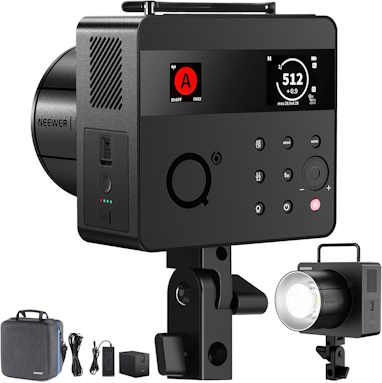
NEEWER Q6 600Ws 2.4G TTL Outdoor Studio Flash
Price: $549.99
63 Reviews
See on AmazonPrice incl. tax, excl. shipping
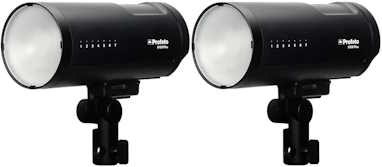
Profoto B10X Plus Off Camera Flash Duo Kit
Price: $3,750.01
4 Reviews
See on AmazonPrice incl. tax, excl. shipping
Memory Cards
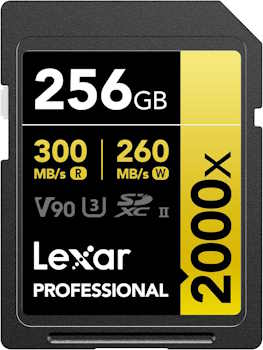
Lexar 256GB Professional 2000x
Price: $284.99
2602 Reviews
See on AmazonPrice incl. tax, excl. shipping
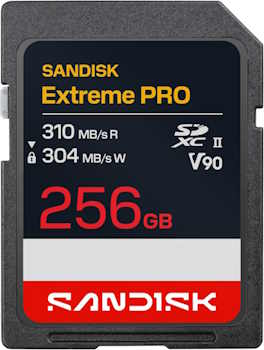
Sandisk 256GB Extreme PRO SD UHS-II V90
Price: $359.99
7 Reviews
See on AmazonPrice incl. tax, excl. shipping
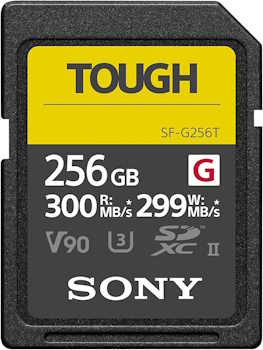
Sony Tough G Series SDXC
Price: $539.90
91 Reviews
See on AmazonPrice incl. tax, excl. shipping
External Microphones
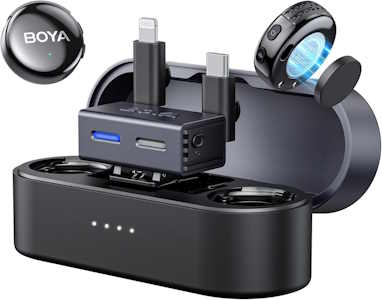
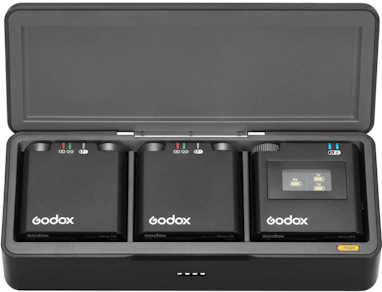
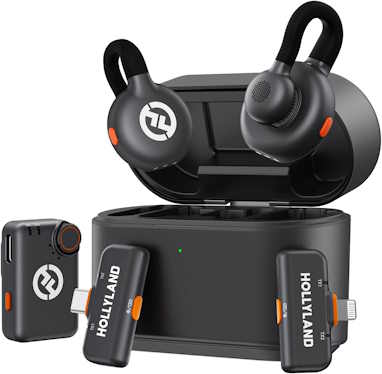
Hollyland Lark M2S Combo Kit
Price: $119.00
489 Reviews
See on AmazonPrice incl. tax, excl. shipping
Tripods
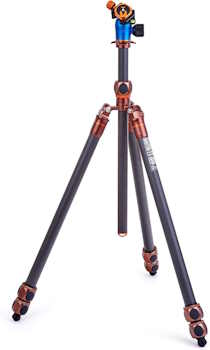
3 Legged Thing Winston 2.0
Price: $499.99
56 Reviews
See on AmazonPrice incl. tax, excl. shipping
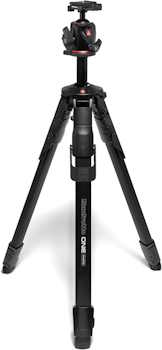
Manfrotto ONE Hybrid Carbon Fiber Tripod
Price: $514.95
4 Reviews
See on AmazonPrice incl. tax, excl. shipping
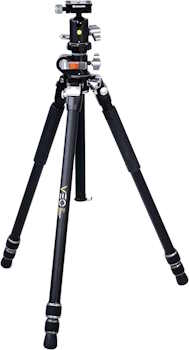
Vanguard Veo 3+ 263AB
Was: $226.58
Currently Unavailable
39 Reviews
See on AmazonPrice incl. tax, excl. shipping
Display Monitors
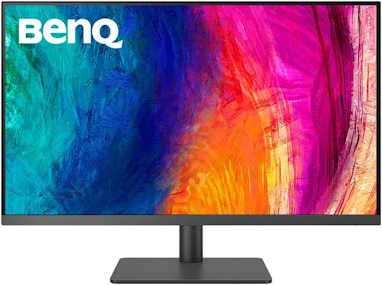
BenQ DesignVue PD3205U
Price: $549.99
192 Reviews
See on AmazonPrice incl. tax, excl. shipping
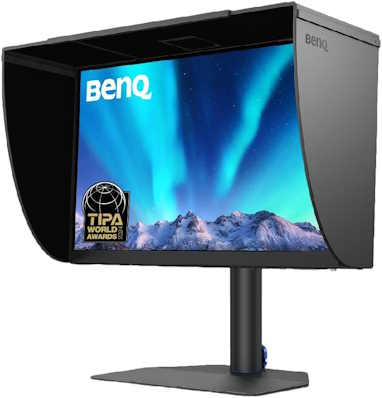
BenQ PhotoVue SW272U 27-inch
Price: $1,499.99
20 Reviews
See on AmazonPrice incl. tax, excl. shipping
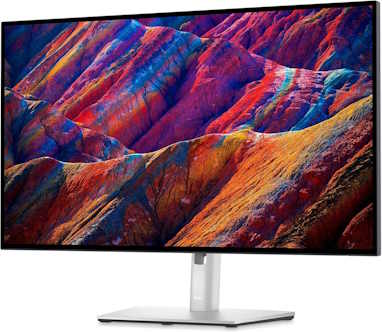
Dell UltraSharp U2723QE 27-inch
Price: $664.09
1028 Reviews
See on AmazonPrice incl. tax, excl. shipping
Drones
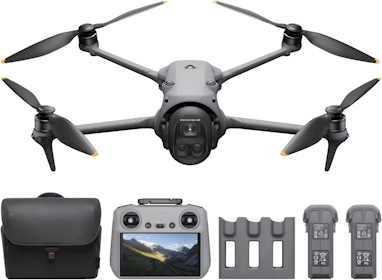
DJI Mavic 4 Pro
Price: $2,495.00
179 Reviews
See on AmazonPrice incl. tax, excl. shipping
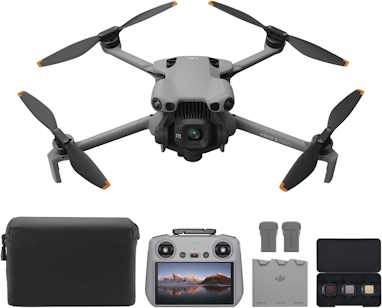
DJI Mini 5 Pro
Price: $1,049.99
607 Reviews
See on AmazonPrice incl. tax, excl. shipping
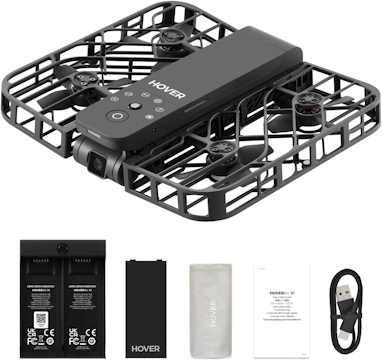
HoverAir X1
Price: $299.00
1147 Reviews
See on AmazonPrice incl. tax, excl. shipping
Speakers
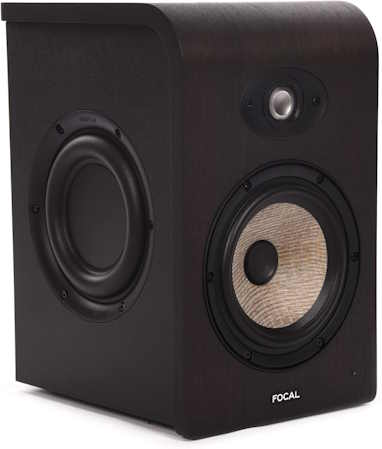
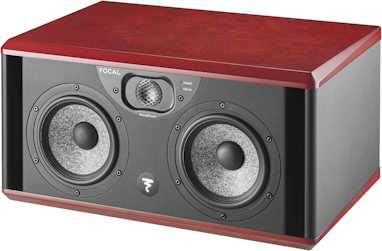
Focal Shape 65
Price: $769.00
14 Reviews
See on AmazonPrice incl. tax, excl. shipping
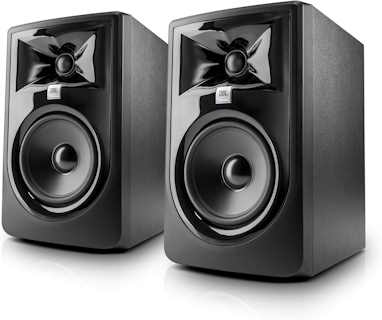
JBL 305P MKII
Price: $269.99
962 Reviews
See on AmazonPrice incl. tax, excl. shipping

Build a Music Production PC – Full Guide
Want to set up a home music studio, here’s our guide on building a PC for Music production.
Video Editing Software

Paid Video Editing Apps
Adobe Premiere Pro
Adobe’s flagship and expansive professional-level digital video editing program. Premiere Pro CC has everything today’s pro video editor needs, particularly when it comes to collaboration and tight integration with other Adobe software.
Final Cut Pro X
Final Cut Pro X from Apple is their professional-level video editing software. It brings a wealth of power in an interface simple for pros and consumers alike. Recent highlights include rich support for 360-degree content, improved stability, and new hardware and media-format support.

Magix Movie Edit Pro Premium
Though it can boast some advanced effects and tools, Magix Movie Edit Pro still lacks some features that are taken for granted in other video editing programs, such as usability and performance.

Adobe Premiere Elements
Adobe’s consumer video editing continues to improve with the addition of a new start page, Auto Creations, a redesigned quick-editing interface, and faster performance. However, it still lacks features like 360-degree editing and multi-cam support, but the render speed has improved.

Avid Media Composer
Avid Media Composer has come a long way and is likely the most famous commercial video-editing package in existence – a longtime favorite used for many Hollywood movies and numerous commercials. According to Avid, 95 percent of movies and TV shows produced in 2016 were edited in Media Composer.
It’s no surprise that this pro tool has an exceedingly steep learning curve. Avid released a scaled-down, free version of this editor called Media Composer | First, which aims to help you learn the Avid ropes for free.
Magix Vegas Movie Studio
Vegas Movie Studio Platinum, now owned by Magix, has made some moves in the right direction, but it’s still got a long way to go to catch up with its more up-to-date competition, especially in usability and rendering speed.
It offers most of the tools you need for editing, but finding them in the interface is more of a challenge than in competing software. However, Vegas offers strong color grading features, slow-motion, decent help, deep effect and editing tools, and a slightly improved interface. It’s still missing some new effects and ease-of-use tools the competition has been adding all along.
Filmora9
Filmora video editing software from Wondershare may not have multi-cam or the hottest new VR tools, but it does have a pleasing interface and lots of effects. It’s worth checking out as an alternative to the big players.

CyberLink PowerDirector
Cyberlink’s PowerDirector is a serious app for serious video editors; it’s an excellent video editing app that delivers professional and high-quality features, without burning a deep hole in your budget. It features a 100-track timeline, stabilization and video correction tools, professional effects, multi-cam editing, motion tracking, and surprisingly easy trimming.
There’s 360-degree video editing as well, together with support for all the industry file standards and formats you can imagine.
Corel Video Studio Ultimate
Corel Video Studio offers a great and affordable entry into video editing software, especially for beginners. One of its strong points is a well-designed interface, which means it’s very easy to get going with straight away. Some features include multi-cam editing, 4K video support, 360-degree VR video support, a music library, and loads of effects.
Adobe Premiere Rush
Rush takes some of the best features of Premiere Pro and puts it in the palm of your hand, that is your smartphone. It affords you the opportunity of editing quickly on the go and post to your preferred social media accounts. It features four video tracks and three audio tracks and doesn’t cost much.
However, the starter plan allows you to export only three videos, after which you must upgrade.

Vimeo Create
Create is aimed at businesses seeking to produce professional-looking social media videos. Those with no experience in video editing software can use and customize included video templates, with millions of stock video clips, photos, and commercially licensed music tracks available to use for free.
The tool also makes it easy to produce videos with a variety of aspect ratios (eg square, horizontal, and vertical) to suit different social platforms. Please note that this is not a standalone app, but is available as part of Vimeo’s Pro, Business, and Premium membership plans.
Related Article

Best Gaming PC Build for all Budgets – Full Guide
We take you through our best guide yet on the best gaming PC build for all budgets.
Free Video Editing Software

KineMaster
This app is solely for Android and iOS devices. It packs the ability to edit multiple layers, add handwriting and text annotations, experiment with up to four audio tracks, and precisely edit at a frame and sub-frame level. This little mobile app gives you more than you’d expect from a video editor app.
Surprisingly, it’s free. You should probably just download this video editing app and give it a try.
Download KineMaster for Android l Download KineMaster for iPhone or iPad

DaVinci Resolve
Resolve is surprisingly a free editor with some impressive features such as powerful color grading and audio capabilities. Little wonder this editor is being used in big-budget TV and film production. If you need an app that has strong points in color grading and audio, then this might be what you are looking for.

Lightworks
This is another professional video editing suite that’s been used on major Hollywood productions and has a free version. Surprisingly, the free version has all the features, except that you are limited in the export. You can only export a 720p video format for the web.
One of its outstanding features is a superbly designed timeline enabling a high degree of control, so you can trim and mix together your audio and video clips exactly how you want them. Overall, it’s a powerful piece of kit for a free app, handling video capture and advanced editing with ease.

VSDC
If you’re making a video presentation and want to add text, lines, charts, and other special effects to it, VSDC helps you achieve that effortlessly. It includes Instagram-style filters, lots of special effects including color correction and blurring, and there’s a mask tool so you can apply effects to part of the video (for obscuring faces, for example).
There’s also a video stabilizer to help remove camera shake from footage taken with GoPros or drones, and a powerful chart tool for adding graphs to presentations.

Hitfilm Express
This app is capable of producing feature films or music videos with nice 3D effects. It’s also good for making videos for YouTube, as direct uploading is built in.
The free version contains everything you need to make a professional-quality production, though in some cases you’ll benefit from expanding its capabilities by purchasing some of the add-on features. Add-on packs start from under $10, so you can pay for only the features you need and tailor the software to your needs for a reasonable price.

Shotcut
Shotcut is a simple, uncomplicated, and customizable little editing app that gets the job done quickly. It supports a huge range of formats. There’s also a rich assortment of filters and quite advanced special effects that are easy to manage and apply. This is one of the best free video editors that will do anything you’d need for the majority of projects.

Apple iMovie
This little app that comes bundled with the Mac OS deserves some mention. It’s not a heavy lifter, but it gets the job done. The result you’d get from this app is really impressive, the only downside, of course, being that it’s only available on a Mac.

Apple Clips
This is a lite video editor that allows you to quickly add stickers, titles, captions, soundtracks, and filters to videos that you import from your Camera Roll or just record there and then. When you are done, it allows you to quickly share on social media using your iPhone or iPad. Great for social media buffs who want to edit short videos and upload them quickly.

Avidemux
Avidemux allows you to perform simple editing operations including simple cutting, filtering, and encoding tasks on Windows 10/7/8. It includes support for AVI, DVD-compatible MPEG files, MP4, and ASF.
There’s no timeline. If your needs are basic, then this free video editing app is for you. If you are looking to do advanced video editing, then this is not for you. The good thing is you can use it smoothly and learn it quickly if you are a new beginner video editor. Its strong point is its solid encoding performance and user-friendly interface.
However, it doesn’t have video effects or transitions.

Openshot
Openshot is an open-source video editing app that offers basic features like trimming and slicing. It also provides lots of transitions and audio effects to help you make simple videos. You also have unlimited video tracks in the timeline, title templates, and video effects.
Some limitations include the fact that you need to fix bugs or problems on your own as it is an open-source editor, and the video effects are also limited.

Videopad Video Editor
VideoPad is an intuitive, feature-rich, and easy-to-use video editing platform. It features an intuitive drag-and-drop type timeline, lots of transitions, effects, and speed adjustment features.
VideoPad includes more than 50 transition effects, and you can also adjust video speed to make a slow-motion or fast-speed video effect. For audio, you can also record narrations to make your video more detailed.
One of its major limitations is that it can’t be used to make a slideshow, so just pass it if you really care about this function. Another one is that certain features become unavailable when using the free version of the software over a longer period of time.

Kdenlive
Kdenlive is an open-source video editing software that is compatible with Windows, Mac, and Linux. Features include a multi-track timeline, and the ability to add free add-ons for more functionality, and automatic backups so you don’t have to worry about losing data as you work.
Kdenlive combines the simplicity of entry-level video editors with advanced video editing tools frequently used by experienced pros.
Related Article
Best 4K Video Editing PC Build – Full Guide
We take you through our best guide yet on the best 4K Editing PC build for all budgets.
Free Web-Based Video Editing Apps

Clipchamp
This easy-to-use free online video editor allows you to create a Clipchamp video editor in 3 Steps, create a new project and drag-n-drop your own audio, image, and videos to the editor to it, and then add text, titles, filters, and transitions or background overlays to the timeline to make a professional-looking video. You can at last export and save the video. You need to create an account on the site before you can use it though.
Get Clipchamp

Kapwing
Kapwing provides lots of video editing tools such as a video trimmer, video resizer, and video maker. Besides the most commonly used editing tools, Kapwing allows you to set up the output video aspect ratio to 1:1, 9:16, 16:9, 4:5, or 5:4, which covers most of the popular video sizes.
There aren’t many templates or transitions and filters compared to Clipchamp, but basically, you can edit and create a video online with this free tool without much effort.
Conclusion
With the preponderance of computer hardware dedicated to video editing, it’s easy to get confused as to which components to buy if you want to build a video editing PC. I hope this guide was able to furnish you with the information you need. You can also check out this guide on the best Photo Editing PC build.
If you are a gamer, check out our guide on the best gaming PC build for all budgets.
There are a couple of reviews you should check out. These include our review of the best laptops for CAD work, the best routers for streaming and gaming, the best graphics cards under 100 USD, the best 24-inch Monitors, and the best monitor for graphic design.
Thanks for reading. Don’t forget to share this article. Also, feel free to drop your comments below if you have questions or comments.
All Articles
This guide really helped me pick between AMD and Intel budget builds. Didn’t realize GPU price mattered this much until I read this. Going with AMD Budget build. Thank you!
Good to know you found it helpful.
Hardware encoding through NVENC cutting export time dramatically without taxing the CPU simultaneously is the efficiency gain most editors appreciate most. Found some solid options for professional GPU rendering over at Orange Hardwares dot com… worth checking before deciding.
Informative article! it clearly explains how a discrete GPU can improve video editing performance, especially for high resolution footage, effects, color grading, and faster rendering.
Good to know you found it useful